In the sea of browser extensions offering adblocker capabilities with varrying degrees of success, one stands out from the crowd, AdGuard.
AdGuard is primarily an adblocker, however its so much more than a simple browser extension such as uBlock Origin and Privacy Badger.
For example, where those two extensions are purely limited to their selection of compatible browsers, AdGuard software functions at the system level.
This system level functionality expands the protections from a single browser to all traffic on the device, whether that traffic is from another application or browser without an extension.
As a browser agnostic and application agnostic piece of software, it positions AdGuard way ahead of the other adblocker extensions which simply run inside a given web browser.
This definitive guide to the AdGuard adblocker will give you everything to need to know in 2020 regarding its features, benefits, and how to obtain it and install it.
Why use AdGuard as your adblocker?
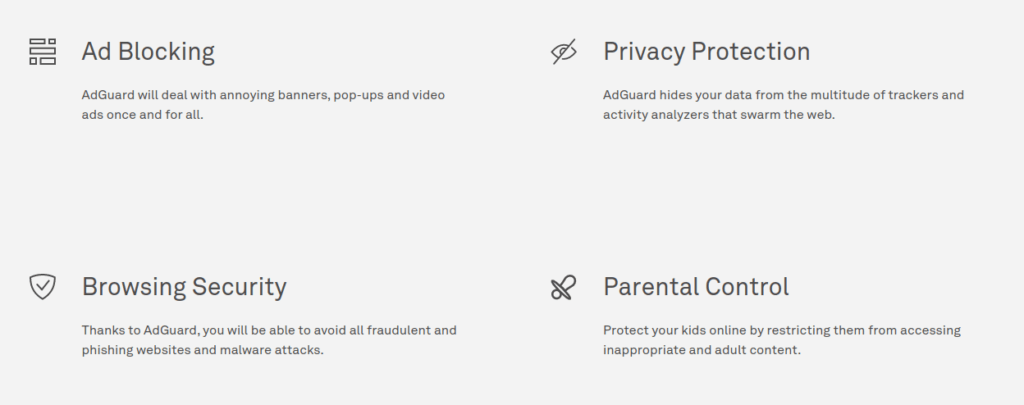
As mentioned above if your operating system of choice is Windows or MacOS, AdGuard is way more than a simple browser extension. The AdGuard software is a comprehensive solution that addresses four critical categories of data privacy and data security while using the internet.
I. Ad Blocking II. Privacy Protection III. Browsing Security IV. Parental Control
Ad Blocking
True to its namesake, AdGuard executes with precision on its primary objective of being an excellent adblocker.
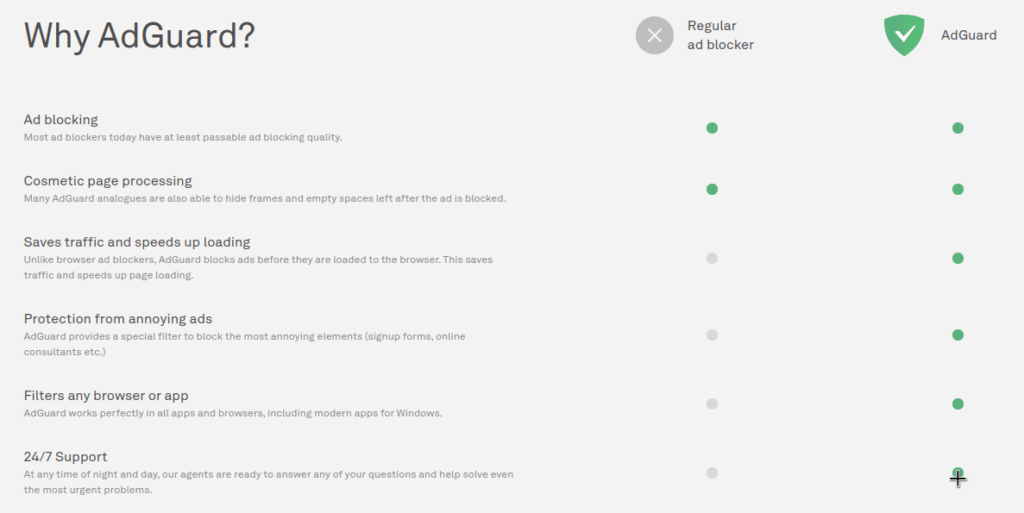
It achieves this by by consistently removing more ads than other adblockers do. The fantastic adblocker ability is not limited to a single browser since the software integrates at the kernel level to provide system wide ad blocking. By default, this integrated service protects all of your other applications as well.
Finally, in the nanoseconds it takes to block annoying ads it not only gives your web browser a speed boost when the ads don’t load, it also will clean up the appearance of the web page from the blocked ads.
AdGuard does this in an effort to close the white space left by blocked ads and all this happens faster than you can blink an eye.
Privacy Protection
Given that most internet advertisements include some form of tracking mechanism, another great benefit of the AdGuard adblocker is that it’s automatically nullifying the vast majority of trackers.
Its worth reiterating that as a standalone program, this ad blocking and tracker blocking its happening system-wide and not limited to the browser.
Browsing Security
AdGuard maintains an updated list of known malicious websites propagating malware and phishing scams. AdGuard will automatically block these websites effortlessly without any speical configurations at the browser level.
Additionally, AdGuard maintains a separate list of websites it deems questionable and will warn you prior to visiting.
Parental Control
Even before the COVID-19 pandemic struck, forcing people around the world to change work environments and school environments it was of paramount importance for parents to restrict the internet access available to their children.
Now in a post COVID-19 world parents should be extra vigilent with most learning transitioning from pysical classrooms to predominantly online classes.
If you are a parent AdGuard gives you the tools to establish system level restrictions in order to prevent your children from accessing inappropriate online content.
How to get AdGuard and protect your data and your privacy today?
Since 2009 AdGuard has been designed by a team who values individual privacy rights and seeks to make their software as user friendly as possible.
To that end, it can be downloaded, installed, and operating with a license key in less than 5 minutes.
Whether your operating system is Windows, MacOS, or Android click on what applies to you below to start your download.
After downloading your system installer simply open the AdGuard program in order to purchase your license key and activate.
There are 4 licenses to choose from.
You can pay yearly for a personal plan supporting up to 3 devices
or
You can pay yearly for a family plan supporting up to 9 devices
or
Both the personal plan and the family plan also can also be purchased as a lifetime license.
AdGuard Adblocker: The Definitive Guide
If you care about blocking ads while reaping the benefits of privacy protection, browsing security, and parental controls, then AdGuard is absolutely the adblocker for you.
In less than five minutes you can try it out for yourself and see firsthand the benefits AdGuard has to offer.
Be sure to leave any comments in the section below!
This is an era where data privacy risks from internet connected devices involves your data being generated, propagated, analyzed, and stored by third-parties on a daily basis.
A large portion of your data being generated revolves around four main catageories of data privacy risks.
I. Domain Name Service (DNS) Leaks II. Email IP Leaks III. IPv6 Leaks IV. Browser/OS Fingerprinting
These data privacy risks are predominantly tied to your internet protocol (IP) address which reveals a lot of your online activities. When using devices on your home network or small business network you have two IP addresses to contend with, your internal private IP address and your external public IP address.
The internal network facing IP address, also known as the private network address is assigned uniquely to each device on your home network by your home router. The address only pertains to the communications between devices happening inside your network.
The external public IP address is assigned by your internet service provider (ISP) and usually represents only your home router or small business router which is then used by each device communicating on the internet. This public IP address represents all of the devices operating behind that home router or small business router.
DNS Leaks
For example, when your device requests a website address through a given website name, such as https://eff.org, it’s translated from those letters into actual IP address numbers. That translation is made possible by the the DNS servers your device is communicating with.
The role DNS servers play in your overall privacy and security on the internet is often overlooked. This is due to the fact that using a modem and router provided by your ISP means the default settings are communicating with their DNS severs.
ISP’s log all activity on their networks and even if a website you are visiting has a padlock symbol signifying encrypted traffic between your device and the website requested, DNS traffic is usually not encrypted. So in addition to your ISP keeping record of all sites you visit, other third parties have visibility into the unencrypted DNS traffic as well.
Should the test reveal that your settings are not achieving the desired outcome then you will have a starting point for identifying and making necessary corrections.
An excellent VPN service provider such as Private Internet Access will actually wrap all of your device traffic in strong encryption including DNS traffic and then route it through their servers, including their own DNS servers.
That shield against ISP traffic monitoring goes a long way towards increasing your online privacy and security.
Email IP Leaks
Another reason and use case for using a VPN service is that simple emails you send can also reveal your IP address.
If you are sending emails while connected to a VPN service then the IP address of the VPN server is revealed instead of your personally identifiable IP address.
IPv6 is the preemptive solution to the Internet’s problem of a dwindling pool of IPv4 addresses available. IPv6 vastly expands the TCP/IP identifiers that can be created.
IPv4 is still the prominent internet protocol in use today, however more ISPs are supporting IPv6 which means that is another avenue for a unique identifier which identifies you. If you have adjusted your router settings to disable IPv6 or use a VPN which claims to shield IPv6 leaks as well, then its highly recommended to test for IPv6 leakage here.
Browser/OS Fingerprinting
Finally, last but not least is browser and operating system (OS) fingerprinting. This is one of the most nefarious and privacy violating tracking methods currently used.
In essence, browser and OS fingerprinting involves capturing many unique data points about your web browser in-use and your operating system in-use. All the data points captured from your browser and OS, which are to numerous to list here are then compiled into a unique and traceable fingerprint across the internet.
So far the best defense to browser and OS fingerprinting is the herd approach. Meaning, you want your device to have identical specifications and settings along with the majority of other users. The more people producing the same browser and OS fingerprint waters down the tracking ability.
In summary, you’ve read about the perils of data leakage and 4 examples of data privacy risks stemming from DNS leaks, email IP leaks, IPv6 leaks, and browser/OS fingerprinting.
You may want to bookmark this page(Press Ctrl + D) and come back to test these areas of data leakage regularly as you work to adjust your settings and mitigate the data leakage.
For further reading on your public IP address vulnerabilities and why a VPN is so important I also recommend this article. What’s my IP?
Feel free to share your thoughts on data privacy risks below!
Among the few leading smart home automation kits available Apple HomeKit is most likely the least popular. That unpopularity compared to other smart home kits such as Google Nest and Amazon Alexa however, is not indicative of Apple HomeKit being sub-par.
The more likely reason for less consumer adoption is that individuals are unaware of how to use HomeKit, or they are more drawn to the marketing campaigns of the competition touting their vast numbers of compatible devices. Its no lie that Google Nest kits and Amazon Alexa kits have more devices to choose from.
In reality, having more smart home devices of the same type such as doorbells and cameras is not necessarily an advantage to them. It may sound good, however each compatible device for a given smart home ecosystem is a potential liability and weak link for a compromise of a home network or small business network if not properly vetted.
In contrast, having fewer devices compatible with Apple HomeKit is a sign of the Apple HomeKit stringent standards of security and quality prior to acceptance into the HomeKit ecosystem. Its those high standards which make Apple HomeKit extremely reliable, robust and more secure than the competition.
As mentioned in my previous post on connected car data and inexpensive home automation systems, Apple HomeKit is the only NETPRAETOR recommended home automation system at this time. This post will provide you with information on how to use HomeKit.
I. Hardware Requirements
Understanding how to use HomeKit requires a knowledge of the hardware elements needed to make it work. In this case when learning how to use HomeKit, it is broken down into three main hardware categories.
Hub – This is the brain of Apple HomeKit which synchronizes and processes all of the information inside your home and the cloud. Any AppleTV 4K, newer iPad, or HomePod can be designated the hub of the house.
NETPRAETOR recommends using an AppleTV 4K as the hub due to its ability to be hardwired via an ethernet cable to a router or switch for more reliable network performance and provides the option for more advanced configurations.
Home Controller – This is the nerve center of Apple HomeKit which sends commands to the various smart home devices.
The Home controller application is your personal iPhone or iPadthat you use on a daily basis. The HomeKit app is already built into your device and simply titled “Home”. If you have never opened it before it will prompt you to add your home when you do.
HomeKit Compatible Smart Devices – This is the body of the Apple HomeKit system made up of all the smart home devcies which execute the commands from the Home controller and processed by the hub.i.e. Turning off and on lights or activating a ceiling fan to work with your thermostat in cooling the home.
As much as the Apple HomeKit competition seeks to distract from how to use HomeKit by their claims of more devices, the devices compatible with Apple HomeKit are are too numerous to list here. You can rest assured though that if a device is Apple HomeKit compatible its one of the best devices on the market for that specific purpose and built to last.
Here are a few NETPRAETOR recommendations to select early when building a new smart home along with how to use HomeKit.
I’ve been using many of these products for 2 years now with absolutely no issues!
Once you have your hub designated, controller identified, and a few Apple HomeKit compatible devices, you are ready for the setup and configuration.
Thankfully, with all the right components present and installed correctly, this process can take less than 30 minutes.
Here is the breakdown on how to setup HomeKit:
Connect the hub device to your home network via ethernet cable or WiFi
Sign-in to the hub with the Apple ID you want to use as the primary
Within the settings of the hub device designate it as the HomeKit hub
Ensure the iPhone or iPad to be used as the controller is also signed-in with the same Apple ID as the hub device
Open the Home application on the iPhone or iPad to be used as the initial controller and add your home to be synced
Pick the first smart device you want to add first and follow the device manufacturer instructions for each device to be added
That’s all there is to it. When wondering how to use HomeKit the most daunting part is not usually the setup and configuration, instead it tends to be the analysis paralysis wondering where to start with all the options to choose from.
I went through that myself when learning how to use HomeKit and that is why I’ve made this post for you.
III. Sharing Access
This is the fun, part. Sharing access to those whom you designate can be a rewarding experience when teaching them how to use HomeKit, especially if it’s their first time getting the “keys” to a fully functional smart house.
Adding people is as simple as opening the Home application on your iPhone or iPad and tapping the home icon in the top left of the screen above your homes name.
From there a new window will open and all you need to do is type in the Apple ID of the people you want to grant access to your home devices.
As people you invite to Apple HomeKit accept the invitation, their names will appear on the screen that pops up after tapping the small home icon above your homes name on the primary screen.
Tapping their name will allow you to edit their permissions such as permitting them to add or remove accessories, or view camera live streams but not prior recordings.
From that point the sky is the limit on how your configure your system and continue to expand it.
How To Use HomeKit?
You just read about how to use HomeKit, the only NETPRAETOR recommended home automation solution at this time.
In terms of simplicity and security, this system is the best on the market with unique features such as Apple Secure Home Video and there are three main elements to consider when learning how to use HomeKit.
I. Hardware Requirements Hub –AppleTV 4k is the best HomeApp Controller – iPhone or iPad HomeKit Compatible Devices – Contrary to what the Apple HomeKit competition says, there are many high quality devices to choose from
II. Setup and Configuration Setting up the Hub and adding devices can take place in as few as six easy steps and under 30 minutes to complete.
III. Sharing Access Enjoying the fruits of your labor with family and friends
Good luck with building your Apple HomeKit and leave any feedback in the comments field below!
As of May 2018, with the entry into application of the General Data Protection Regulation, there is one set of data protection rules for all companies operating in the EU, wherever they are based. Stronger rules on data protection mean people have more control over their personal data and businesses benefit from a level playing field.
There are several laws in Israel that relate to privacy rights. Enforcement of these laws is handled by the Privacy Protection Authority. It is the Israeli regulatory and enforcing authority for personal digital information.
The Italian Data Protection Authority (Garante per la protezione dei dati personali) is an independent authority set up to protect fundamental rights and freedoms in connection with the processing of personal data, and to ensure respect for individuals’ dignity.
The California Consumer Privacy Act (CCPA) was enacted in 2018 and took effect on January 1, 2020. This landmark piece of legislation secures new privacy rights for California consumers. On October 10, 2019, Attorney General Xavier Becerra released draft regulations under the CCPA for public comment.
We use cookies to ensure that we give you the best experience on our website. If you continue to use this site we will assume that you are happy with it.